Mar 19, 2026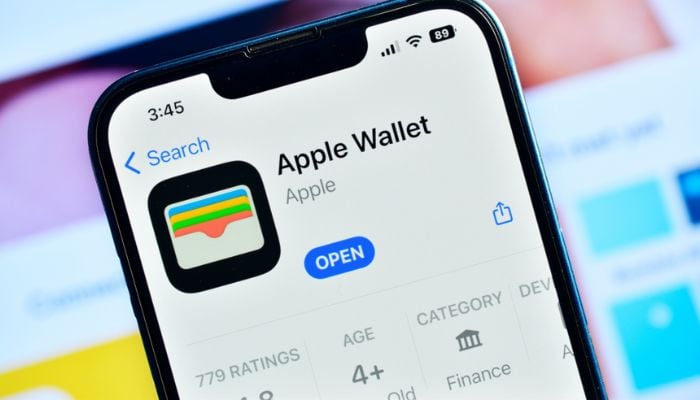
If you're tired of seeing ads on another app, named 'Apple Wallet', don't worry, Gadinsider has a solution to ease your tension, providing you steps, which you can follow to disable ads on the platform.
"The Apple Wallet app lives right on your iPhone. It's where you securely keep your credit and debit cards, eligible driver's license or state ID, transit cards, event tickets, keys, and more — all in one place. And it all works with iPhone or Apple Watch, so you can take less with you but always bring more," said Apple, adding that Apple Pay is designed with your security and privacy in mind, making it a simpler and more secure way to pay than using your physical credit, debit, and prepaid cards.
How to disable ads on Apple Wallet?
- Firstly, you need to open the Apple Wallet app.
- You might see promotions and offers but even if you don’t you can take action to prevent them appearing in future.
- Tap the three-dot icon in the top-right of the screen.
- Once the menu appears, select Notifications. This will show you the types of notifications that can appear in your Wallet.
- Disable 'Offers & Promotions'.
Once done, you won't receive ads in your Apple Wallet, allowing you to continue using it to store the bank cards.
How to add debit or credit card to Apple Wallet?
- Open the Wallet app on your iPhone.
- Tap the plus icon (+) in the top-right corner.
- Select Debit or Credit Card.
- You can either use your camera to scan the card details automatically or choose to Enter Card Details Manually.
- Your bank will then need to verify the card, usually by sending a one-time code via SMS or asking you to approve it in their banking app.
Once verified, your card appears in the Wallet, which is then ready to be used with Apple Pay.