Jan 21, 2026
Are you tired of charging your iPhone multiple times a day and looking for tips to make your iPhone battery last longer? Then Gadinsider has a solution that will ease your tiredness.
Apple iPhone's display are famous for their sharp visuals and smooth performance, as compared to Android devices, but they can also be a major drain on battery life, which gives you tension to charge your iPhone multiple times.
How to save iPhone battery health
Here's five tips that you can follow to save your iPhone's battery health to last longer, avoiding multiple times charging in a day.
Turn down display brightness
High brightness majorly drains iPhone battery life, as lowering screen brightness is one of the most effective ways to let iPhone battery last longer.
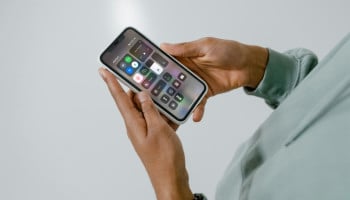
You can adjust brightness by opening the 'Control Center' and dragging the sun icon slider downward. Keeping brightness at a comfortable but lower level reduces backlight usage, which helps you save iPhone battery.
Disable 'Auto-Brightness' on iPhone
If you have enabled 'Auto-brightness' then quickly disable it, as 'Auto-brightness' drains iPhone battery health and will make you charge your device multiple times.
Go to Settings > Accessibility > Display & Text Size and turn off Auto-Brightness. This move will give you full control over brightness levels and prevents unnecessary battery drain in bright rooms or outdoor settings.
Use 'Low Power Mode' when needed
Apple has featured 'Low Power mode' to reduce overall power consumption, including how the iPhone's display behaves.
When enabled, it dims the screen, limits auto-brightness effects, shortens screen timeout to 30 seconds, and reduces refresh rates on ProMotion-enabled iPhones from 120Hz to 60Hz. You can enable it manually from the 'Control Center'.
Reduce 'Auto Lock' time
You need to adjust 'Auto Lock' on your iPhone, as it ensures that your device screen doesn't stay on longer than necessary.
You can set timer by going to Settings > Display & Brightness > Auto Lock. Selecting a shorter time gives you more control to save your iPhone battery if you frequently set your phone down without locking it manually.
Enable 'Dark Mode' on OLED iPhones
Dark Mode replaces bright backgrounds with darker tones across menus and system apps.
This is effective on iPhones with OLED displays, which don’t illuminate black pixels. Dark Mode can reduce power usage, though LCD-based models may see minimal benefit.