Apr 22, 2026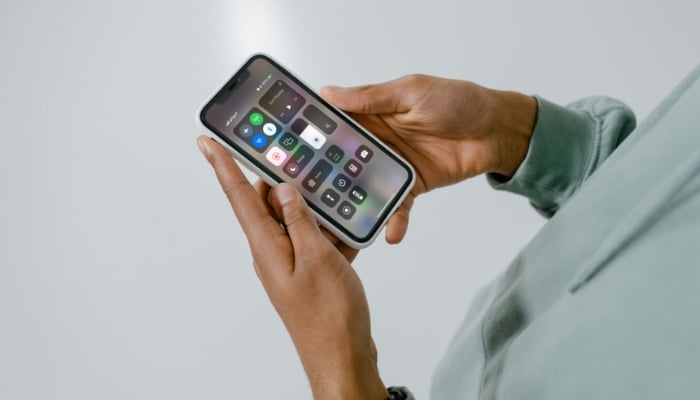
If you're tired of charging your iPhone again and again in a single day, don't worry, Gadinsider has got some of the best settings, which will save your iPhone battery life.
Majority of the users don't know how to save iPhone battery life, but now everyone would be able to enable these seven settings, which can give your iPhone battery life a significant boost.
How to boost your iPhone battery life
Here's what drains your battery most and how can you fix it in just few steps:
Lower screen brightness and turn on auto-brightness
Whenever your iPhone is on high brightness, it consumes more battery than the normal, so reducing brightness makes a noticeable difference in how long your phone lasts.
Open the 'Control Center' and drag the brightness slider down until the screen is comfortably visible but not at maximum. You don't need full brightness indoors or in most lighting conditions. Go to 'Settings', 'Accessibility', 'Display & Text Size' and toggle on 'Auto-Brightness'. This adjusts screen brightness automatically based on ambient light, keeping it lower in dim environments and brighter in sunlight.
Disable always-on display
The always-on display is convenient for checking time and notifications without touching your phone, but that convenience costs significant battery life. Go to Settings, Display & Brightness and toggle off 'Always On Display'. Your lock screen will now go completely black when the phone is locked, waking only when you tap the screen or raise your wrist.
For phones without always-on displays (iPhone 14 and earlier standard models), this setting doesn't exist and isn't a concern.
Enable 'Low Power Mode' when battery drops below 20%
Low Power Mode reduces or disables several features to extend battery life significantly.
Go to 'Settings', 'Battery' and toggle on 'Low Power Mode'. Your battery icon turns yellow to indicate it's active. The phone prompts you to enable it automatically when battery hits 20%, but you can turn it on manually anytime.
Disable background app refresh
Go to 'Settings', 'General', 'Background App Refresh'. Tap 'Background App Refresh' at the top and select 'Off' to disable it entirely. By disabling 'Background App Refresh' means apps update only when you open them. You'll see slightly older content when launching apps, but you'll gain significant battery life by preventing dozens of apps from constantly running in the background.
Reduce unnecessary notifications
Every notification wakes your screen, plays a sound, vibrates, and potentially triggers the haptic engine, which drains significant battery health.
Go to 'Settings' and 'Notifications'. Next, scroll through your app list and tap each app individually. Toggle off 'Allow Notifications' entirely for apps you don't need alerts from.
Turn off 'Talk to Siri'
Apple's 'Hey Siri' feature constantly listens for the wake command, using both the microphone and Neural Engine to identify when you say the phrase.
However, if you don't use it on regular basis, then it's better to turn off. For which you need to go to 'Settings', 'Apple Intelligence & Siri', 'Talk & Type to Siri', and toggle off. You can still access Siri anytime by pressing and holding the side button.
Use 'Dark Mode'
Dark Mode saves a massive part of your iPhone battery life with OLED displays like the iPhone X and newer models. OLED screens light individual pixels, so black areas use no power. The more black pixels on screen, the less battery consumed.
Go to 'Settings' and 'Display & Brightness'. Under 'Appearance', tap 'Dark'. Your interface switches to dark backgrounds with light text.
It is important to note that after changing these settings, your iPhone battery might lasts twice as long as it did before.